KodiiPay for Windows

Everything your phone does. On your desktop.

KodiiPay for Windows is the same account, the same wallet and the same features you use on Android and iOS — properties, tenants, rent, payments, messages, reports and security — in a workspace built for a screen you can actually work on.

One wallet

The same balance, on every device you sign in on.

Every screen

Nothing on your phone is missing here.

Same security

The same KYC, plan and wallet rules everywhere.

Feature parity

Not a companion app. The same app.

Most desktop companions show you a summary and hide the work. KodiiPay for Windows is not that. Every screen you have on your phone exists on desktop, backed by the same rules, the same money and the same security — because it is the same KodiiPay, not a smaller version of it.

Money in and money out

The full wallet, exactly as you use it on your phone.

  • Wallet and balance
  • Top Up by M-Pesa
  • Pay Rent
  • PayBill and bill payments
  • Buy Goods & Services (till)
  • Pochi la Biashara
  • Send Money
  • Wallet Transfer
  • Request Withdrawal
  • Payout Methods
  • Transactions and transaction detail
  • Verify a Receipt

Properties and tenants

Landlord: the estate, from listing to lease.

  • Properties and property detail
  • Add property and units
  • Edit property and edit unit
  • Units list with filters
  • Tenants and tenant records
  • Tenancy agreements
  • Record rent payment
  • Adjust rent, penalties and waivers

Landlord money and compliance

Earnings, payouts and the checks that protect them.

  • Earnings and collection rate
  • Advanced analytics
  • Expense tracker
  • Budget planner
  • Document storage
  • Subscription and billing
  • KYC verification
  • Withdrawals and payout methods

Running the estate

Landlord: the work that happens after the rent arrives.

  • Tenant invitations, single and batch
  • Maintenance tracker
  • Maintenance reports
  • Formal notices
  • Property reviews
  • Payment history and statements
  • Referrals
  • Services hub

Tenant home life

Tenant: rent, the lease, and everything the lease involves.

  • Home dashboard
  • Rent and payment schedules
  • Tenancy and agreement
  • Maintenance requests
  • Notices from your landlord
  • Write and read reviews
  • Referrals
  • Find a home, favourites and unit listings
  • Bookings

Messages and support

Direct and group chat, plus a way to reach a human.

  • Direct and group conversations
  • Voice notes, polls and reactions
  • Typing indicators and read receipts
  • In-app notifications
  • Global search
  • Help centre
  • Support tickets

Account and security

The same sign-in, device and lock controls you have now.

  • Register and sign in
  • Forgot and reset password
  • Emailed login codes
  • Device limit and session eviction
  • App lock and PIN
  • QR device linking
  • Profile and photo
  • Settings and notification preferences

Every one of these is written up screen by screen in the KodiiPay desktop user guide.

A screen, not a summary

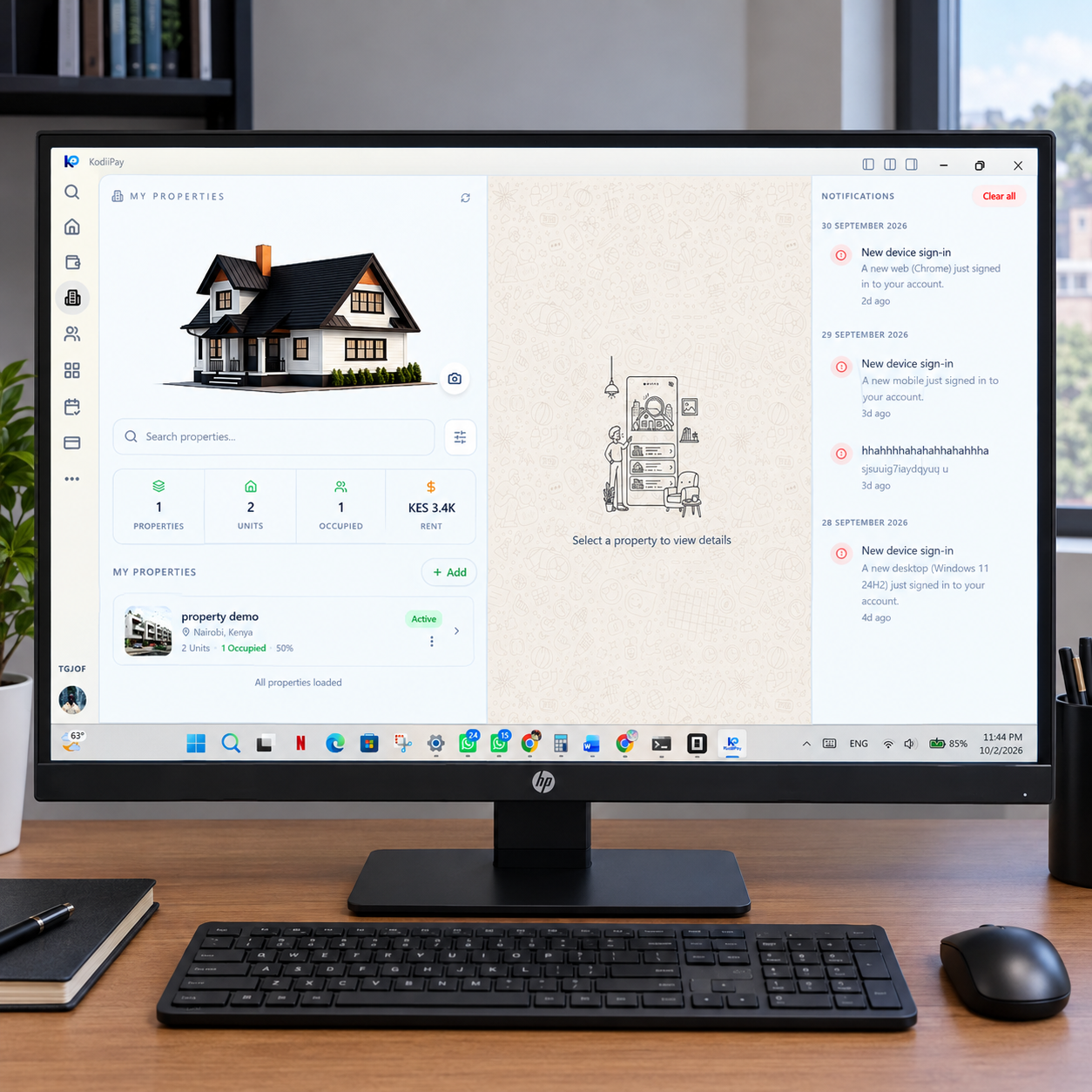
The portfolio stays open while you work on it

A phone screen is good for one thing at a time. On desktop the properties workspace holds your portfolio and the property you have open at the same time, so the list you are working from never disappears behind the thing you are editing.
Search sits in the list
Filter the portfolio by name as you type. The rail is the working surface, not a menu you open and close again.
Act without navigating away
View, edit, delete or open the photo library for any property from its row, then come straight back to the same list.
The open property stays pinned
Whatever you select keeps its details, photos, monthly total and deposit in view beside the list, so a change is never made against the wrong property.
The KodiiPay properties screen on Windows, showing the property list on the left, the selected property's details beside it and the units inside it.
KodiiPay for Windows — the properties workspace.
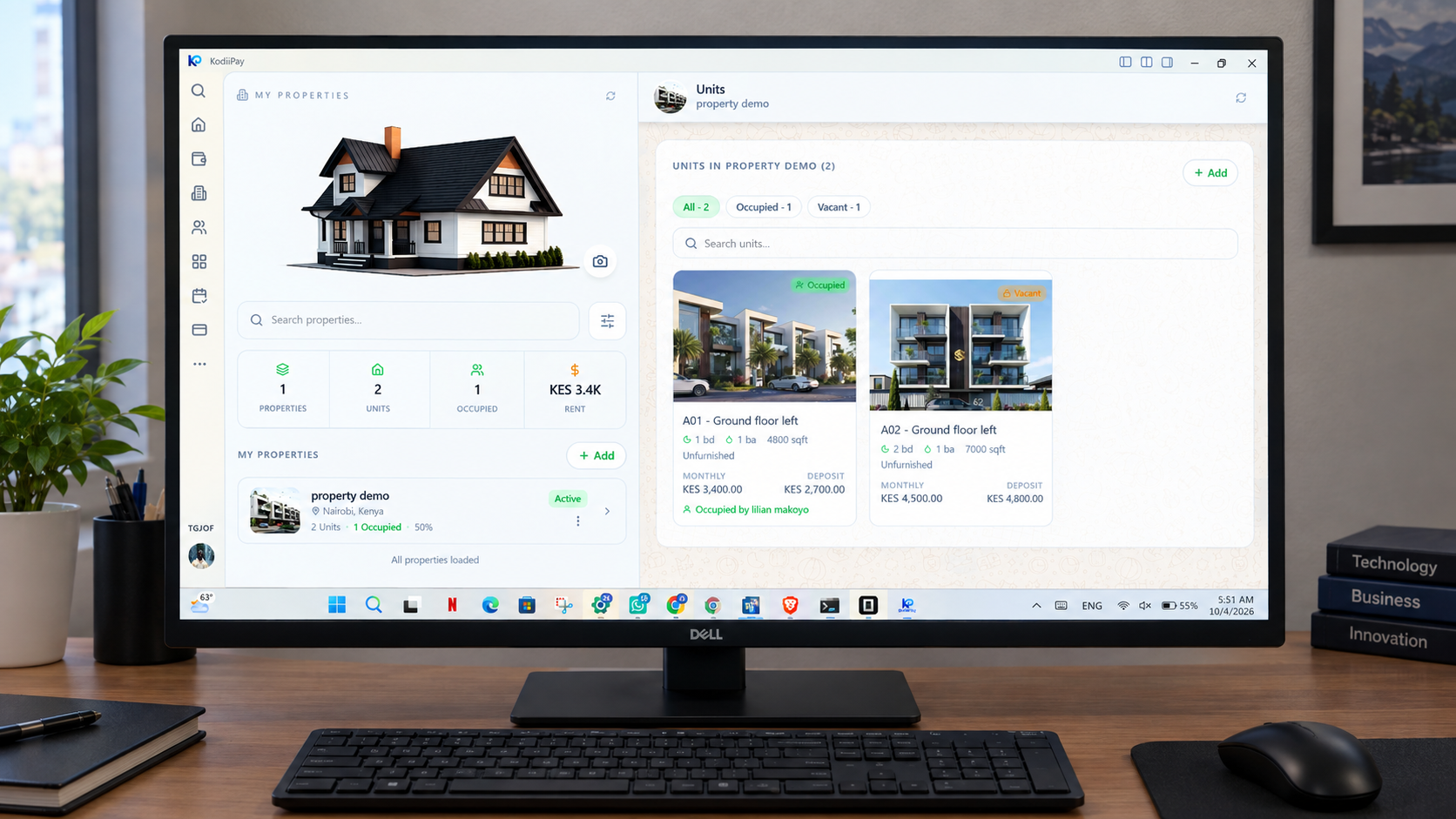
The KodiiPay units screen on Windows, showing the units belonging to a selected property with the option to add more units to it.

Inside one property

Units, scoped to the property you are working on

Units are never a flat list. Pick a property and the whole screen narrows to it — every unit in that building, what each one rents for, and whether it is occupied. You stay inside that property while you keep adding units to it, so building out a block never means starting over.
1

Units belong to a property

Until a property is selected there are no units to show, so the screen asks you to pick one first. Everything after that is scoped to that one building.

2

Search, filter and sort them

Narrow the units by name, filter by status and sort them the way you want to read them, instead of scrolling a long block.

3

Rent and vacancy on every row

Each unit carries what it rents for and whether it is occupied or vacant, so the state of the building is readable without opening anything.

4

Add more without leaving

Keep adding units to the same property from the same screen, and edit a unit where it sits.

Your role, your workspace

Two workspaces, one account.

KodiiPay opens the workspace that matches how you use the platform. Both are the same product underneath, so your activity stays connected whichever one you have open.

Tenant workspace

Rent and home life, kept in one place.

Everything a tenant needs day to day: the wallet, the rent schedule, the lease, and the requests and notices that come with the home.

29 screens

  • Home dashboard
  • Wallet
  • Top Up
  • Pay Rent
  • Tenancy
  • More
  • Services hub
  • PayBill
  • Buy Goods & Services
  • Pochi la Biashara
  • Send Money
  • Wallet Transfer
  • Request Withdrawal
  • Payout Methods
  • Payment history
  • Transaction detail
  • Verify a Receipt
  • Maintenance requests
  • Notices
  • Reviews
  • Referrals
  • Find a Home
  • Favourites
  • Bookings
  • Invitations
  • Messages
  • Support tickets
  • Profile
  • Settings

Landlord workspace

The estate, from listing to payout.

Everything behind the rent: properties and units, tenants and tenancies, collection, maintenance, notices, and the reporting that tells you how the portfolio is really doing.

33 screens

  • Dashboard
  • Properties
  • Property detail
  • Add property and units
  • Units
  • Tenants
  • Tenant record
  • Tenancies
  • Record rent payment
  • Adjust rent
  • Invitations
  • Earnings
  • Withdrawals
  • Payout methods
  • KYC
  • Subscription and billing
  • Advanced analytics
  • Expenses
  • Budgets
  • Documents
  • Maintenance tracker
  • Maintenance reports
  • Notices
  • Payment history
  • Reviews
  • Referrals
  • Services hub
  • PayBill
  • Send Money
  • More
  • Messages
  • Profile
  • Settings

The Accounting Engine

Bookkeeping-grade accounting, with room to work it

KodiiPay does not bolt reports onto a cash register — the accounting engine is the ledger. Every shilling is written on immutable rails carrying the balance before and after it, and no app, website or user can edit a balance directly. The desktop simply gives that engine a screen worth working in.

Read the trail, not just the total

Every movement shows its entry type, its reference and the balance on both sides of it. On a wide screen you can follow a single shilling end to end instead of tapping into rows one at a time.

Close a period, not just check a balance

Filter the books by date range and read income against expenses across every property together. That is the difference between confirming a number and actually closing a month.

One set of books on every device

It is the same engine underneath. A rent payment taken on your phone shows on desktop with the same entry and the same reference — never a second set of numbers that quietly drifts.

Made for the screen

Not the phone app, stretched.

A phone layout blown up to a monitor is still a phone layout. These screens are arranged around the space a desktop actually gives you.

A workspace, not a wide form

Desktop screens are built in panels: your list on the left, the record you are working on in the middle, and its activity on the right. You can work through a tenant, a unit or a payment without losing your place or opening a new screen for every step.

Tables that survive a real portfolio

Search, filter and sort across tenants, units, payments and transactions, then keep scrolling without a page reload. When twenty units become two hundred, the difference between a list and a table is the difference between working and scrolling.

Statements you can hand over

Payment histories and statements open as clean, printable documents. Save one as a PDF or print it straight from the app when a tenant, an agent or a lawyer asks where the rent went.

Replies without switching apps

New messages arrive as desktop notifications you can answer in place, without leaving the record you were reading or reaching for your phone.

It waits for you

The desktop app keeps running beside your other work. Rent reminders, tenant replies and maintenance reports are waiting when you come back, not lost because you closed the window.

One honest exception

M-Pesa still approves on your phone. Safaricom sends the prompt to the number saved on your account and you enter your PIN there; desktop starts the payment and shows you the confirmed result. That is Safaricom's rule, not ours, and it is the same on mobile.

Phone and computer

They work together, on purpose.

Your phone is not obsolete when you sit at a desk, and your computer is not a second account. Both are KodiiPay, holding the same money and the same records.

Link a device by scanning

Sign in on desktop with your email and password, or open the QR menu on your phone, choose Link a Device and scan the code on your desktop. No typing a code on a keyboard you are not used to.

Approve payments on your phone

Start a top-up or rent payment on desktop, approve the M-Pesa prompt on the phone that carries your number, and watch the result land back on your screen.

Your device limit covers both

Phones and computers count together. If you are already at your maximum, linking the desktop signs out your oldest device, so raise Max Devices in Profile before you link it.

The same security on every screen

Emailed login codes, app lock, session eviction and the same KYC, subscription and wallet-freeze checks. A bigger screen does not mean weaker rules.

Straight answers

Desktop app questions

Does the KodiiPay desktop app do everything the mobile app does?

+

Yes. This is not a companion app that shows a summary or a read-only view. Every screen you have on your phone exists on desktop with the same rules behind it: your wallet, top-ups, rent payment, PayBill, till and Pochi payments, send money, transfers, withdrawals, payout methods, properties, units, tenants, tenancies, recorded payments, rent adjustments, invitations, earnings, analytics, expenses, budgets, documents, maintenance, notices, reviews, referrals, find a home, bookings, messages, support and every account and security setting.

Do I need a separate KodiiPay account for the desktop app?

+

No. It is the same KodiiPay account. The same wallet balance, the same rent schedules, the same payment history and the same referral code. Nothing is duplicated and nothing has to be migrated when you move between your phone and your computer.

How do I approve M-Pesa payments if I am on a computer?

+

Safaricom approves M-Pesa on the handset. You start the top-up or rent payment on desktop, KodiiPay sends the STK request to the M-Pesa number saved on your account, you enter your PIN on your phone, and the desktop app shows you the confirmed result. This is exactly how it works on mobile, and it is Safaricom's requirement rather than a limitation we chose.

Can I use my phone and my computer at the same time?

+

Yes, up to your device limit. Phones and computers count towards the same maximum, and when you go over it KodiiPay asks you which device to sign out rather than silently locking you out. If you expect to be signed in on both, raise Max Devices in Profile first.

How do I sign in on desktop?

+

With your email and password, or by linking the desktop from your phone with a QR code. Device limits and emailed login codes still apply, and if you have app lock enabled your desktop session is protected the same way your phone is.

Is my money as safe on the desktop app as on mobile?

+

Yes, because the safety is enforced on KodiiPay's side, not by the screen. A balance is only ever credited once M-Pesa or the bank confirms the payment. Landlord bank payouts stay held until KYC is approved. A lapsed subscription freezes the wallet instead of letting money leave. Every movement notifies you, and every payout requires an active plan, a verified identity and an unfrozen wallet.

Can a landlord manage properties and tenants on the desktop app?

+

Yes, that is the main reason to use it. Add properties and units, invite tenants individually or in batches, record cash rent payments, adjust rent, apply or waive penalties, track maintenance, send formal notices, review earnings and collection rates, and export payment histories as statements.

What is the difference between the desktop app and this website?

+

The website is for paying rent, finding a home and reading guides. The desktop app is where you manage the account itself: your wallet and payments, your properties and tenants, messages, documents, reports and settings. They use the same login and the same data, so anything you do in one is waiting in the other.

Will the desktop app cost extra?

+

No. It runs on the same plans and the same pricing as the mobile app. Landlord subscriptions, feature limits and transaction fees are identical, because it is the same product on a different screen size rather than a separate tier.

How do I get the KodiiPay desktop app?

+

Download the Windows installer from the download page, run it, and sign in with your existing KodiiPay account. The complete desktop user guide is written and free to read, so you can see every screen before you install anything.

KodiiPay on your Windows desktop.

Download it, sign in with the account you already have, and pick up exactly where your phone left off.